REWIND
How to Add Your Own Music Files to an iPhone
To add music files to an iPhone, put them in the Files app using iCloud Drive, AirDrop, a USB drive or a cloud service, then import them into a player app that reads local files. No account or sync software is required, and the music stays on the phone.
Download free on iPhoneSee all 30 machines
8 machines free forever · no account · works offline
What counts as a music file?
A music file is a normal audio file you own: an MP3 you bought, a track you ripped from a CD, a download from an artist's own store. It sits in a folder like any document. That is different from a song in a streaming app, which is a license to play inside that app.
The common types are MP3, AAC and M4A, ALAC, FLAC, WAV, AIFF and CAF. REWIND reads all seven. It does not promise OGG, Opus, DSD, APE or WMA.
How do you get files onto the iPhone?
Apple's guide describes the Files app as the place to browse your files, including iCloud Drive and anything you downloaded (Apple Support: Files basics). Any route that ends there will work. Pick one that suits where the music lives.
- iCloud Drive: copy the folder into iCloud Drive on a computer, then open it on the phone.
- AirDrop: from a Mac, select files and send them to the iPhone; save them to Files.
- USB drive or SD card reader: external storage shows up in Files once it is plugged in with the right adapter (Apple Support).
- Cloud services: if your files are in a cloud storage app that appears in Files, they are already there.
- Safari or Mail downloads: a file you download from a store like Bandcamp lands in Downloads in the Files app.
How do you import them into REWIND?
Once the files are in Files, the import takes under a minute.
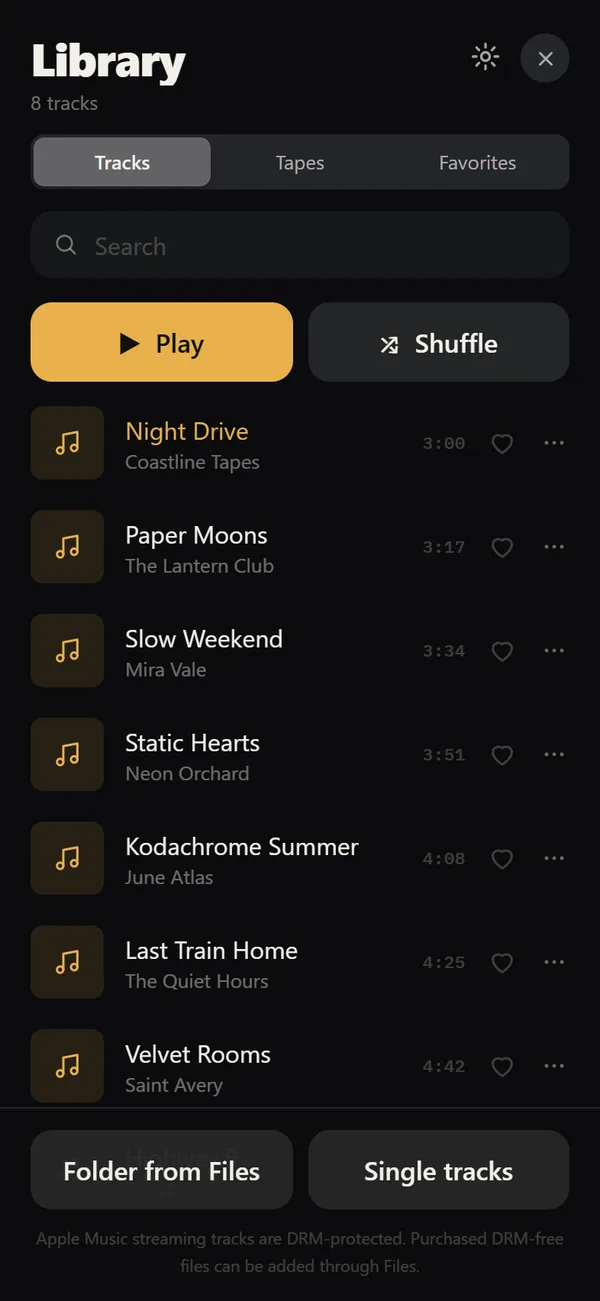
- Open REWIND and go to the library.
- Choose the import option and select either one folder or single tracks from the Files picker.
- Wait while REWIND copies the files into the app. The originals stay where they are.
- If any file lives in iCloud and has not been downloaded, REWIND reports it. Download it in the Files app and import again.
- Check the library: titles, artists and cover art are read from the tags in the files.
Why are some songs missing or greyed out?
Two causes cover almost every case. First, the file is still in the cloud. iCloud keeps a placeholder until you tap it, and a placeholder has no audio in it yet. Second, the file is DRM-protected. Tracks from Apple Music or Spotify subscriptions are encrypted, and no third-party player can open them. We cover the details in DRM-protected music and the dedicated post on why Apple Music songs won't import.
Files you bought as downloads, such as iTunes Store purchases saved as files, Bandcamp downloads and your own CD rips, are DRM-free and work. Where to buy DRM-free music lists sources.
How should you organize the files first?
A little tidying on the computer saves frustration later. The app reads tags, so tag quality decides how neat the library looks.
Keep one folder per album and make sure each file has a title, an artist and, ideally, embedded cover art. Name folders with the artist and year. A folder import then brings in a whole collection in one go. After importing, use search, favorites and shuffle to move around; the tour is on the music library page.
Cover art deserves a minute too. Embedded art travels inside the file, so a tidy tag on the computer means a good-looking tile in the player. If a folder has a separate image file instead, embed it with a tag editor before you import.
Does importing use mobile data or an account?
No account exists, and importing from the Files app uses no network unless a file needs to be downloaded from iCloud first. After import, playback works fully offline. The privacy label for REWIND reads "Data Not Collected", and your files stay on the device. The same idea powers offline music on iPhone.
Before you start, check storage. A lossless album can take several hundred megabytes, so a big FLAC collection can use real space. Compressed MP3 or AAC files cost far less.
What if your music is in the wrong format?
Most common formats work, but a few do not. REWIND does not promise OGG, Opus, DSD, APE or WMA, so files in those formats need converting first. A free converter on a computer can turn them into FLAC, ALAC or MP3. Converting a lossless original to FLAC or ALAC loses nothing.
Convert once, in bulk, before you import. Keep the original folder as a backup, since converting from one lossy format to another loses quality each time. If you are choosing a format for the first time, the MP3 page covers compatibility, and FLAC covers lossless.
What is a good first-day routine?
Start small. Import one album and one folder of singles. Play them on a couple of machines. Check that tags look right and cover art loads, then fix any that are wrong on the computer and re-import.
Once that works, import the rest in batches. Large imports take time, since the files are copied into the app. Keep the phone unlocked and plugged in if the collection is big. After that, build a mixtape, set the equalizer, and pick a machine you like. The app has 30 machines to choose from, and 8 are free.
Frequently asked questions
How do I put MP3 files on my iPhone without iTunes?
Copy them to the Files app using iCloud Drive, AirDrop, a cable transfer or a cloud storage app. Then import them into a player such as REWIND.
Can I import a whole folder at once?
Yes. REWIND can import a whole folder or single tracks from the Files app.
Why does a song show up but not play?
It may be an iCloud placeholder that has not been downloaded, or a DRM-protected streaming track. REWIND reports undownloaded iCloud files so you can fetch them.
Which file types does REWIND support?
MP3, AAC/M4A, ALAC, WAV, AIFF, FLAC and CAF.
Does REWIND need an account to import music?
No. There is no account, no ads and no analytics, and your files stay on your device.
Keep exploring
Offline Music Library for iPhoneImport folders or tracks from Files. Tags, cover art, search, favorites, shuffle and repeat. Offline.Supported Audio Formats in REWIND for iPhoneSupported audio formats and what to do about DRM-protected music.DRM-Protected MusicWhy streaming downloads cannot be imported, and which DRM-free sources work.Apple Music Songs Won't Import? Why and What to DoWhy Apple Music downloads cannot be imported, a troubleshooting checklist, supported formats and legal ways to get files you can use.Where to Buy DRM-Free MusicWhere to get music as files you own: Bandcamp, iTunes, Qobuz, Amazon, Beatport and CD rips, plus how to check a file is DRM-free. Offline Music Player for iPhone, No AccountNo network, no account, no ads, no tracking. Your files stay on the iPhone.